Creating a holiday tree AnimatedVectorDrawable
In the last post, I used rotation and a couple of key frames to create an animated Android. You can do a lot with a couple of well thought out key frames. But key frames are only part of the story. Blender has another powerful means of animating: shape keys.
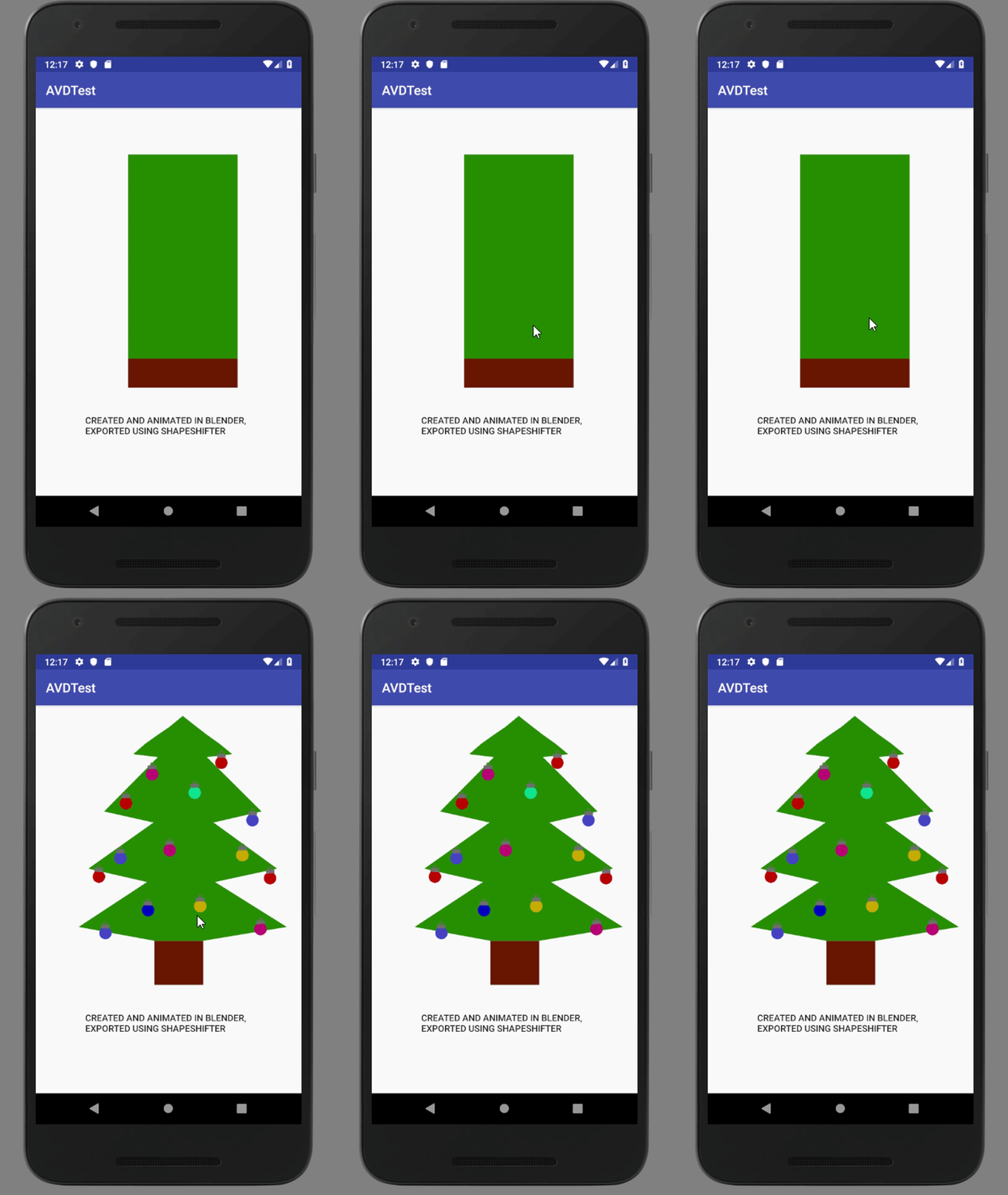
Shape keys allowed me to create this animation. Here's the reference Blender file I used (and other referenced files from this post).
Shape keys allow you to store alternate positional data for the vertices in a mesh without affecting the original mesh data. Here is a plane with a couple of shape keys that each deform a single vertex.
Shape keys are similar to key frames which allow you to interpolate between a starting and end point, but they differ in three big ways.
Key frames are bound to a specific time on the timeline. Shape keys are bound to a mesh.
Only one key frame can be active at a time for a specific attribute. Multiple shape keys can influence a mesh at the same time.
A specific frame either is or isn't a key frame. In addition to multiple shape keys being able to be in effect at once, you can also set the amount of influence each shape key will have on the source mesh.
Creating a Shape Key
Starting with a plane in the scene, navigate to the data menu indicated with a triangle. We will first need a Basis key or the state of the mesh without any deformation. Clicking the plus button in the Shape Keys panel will create a Basis key. Clicking the plus again will create a new shape key we can adjust. With the desired key selected, enter Edit mode (Tab) and you can move the vertices around. When you exit Edit mode, it should snap back to the positions of the basis. That's because the key defaults to zero influence on the mesh.
Creating shape keys for a tree
To animate the tree, I started with a scaled plane that was subdivided several times to give me enough vertices to move around. I moved them into the rough shape of a pine tree.
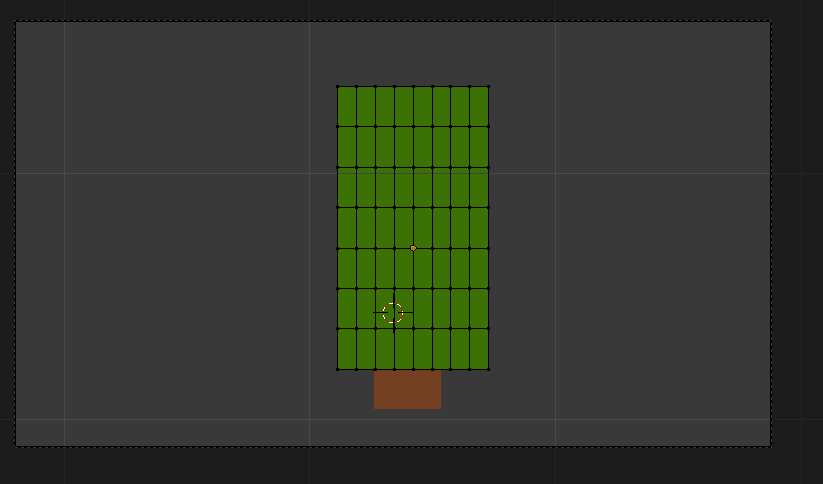 Tree basis (reference) vertex positions
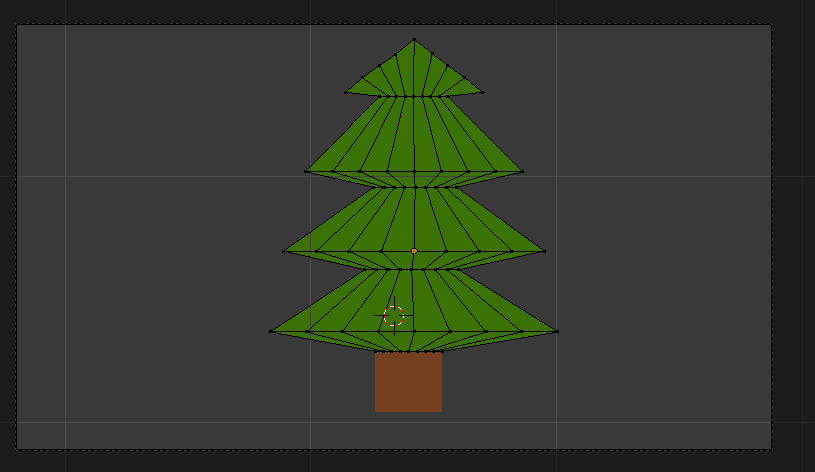 Tree with 100% influence of Key 1
One little quirk of creating in Blender and exporting to AVD is that Blender will gladly permit you to have different materials applied to different parts of a mesh. To have the AVD respect my material choices, I got my shape keys working how I wanted them to and then assigned a new material to the base of the tree and split by material. The split automatically created the keys for the vertices that were previously in the larger object.
Making the key frames
After creating all the required shape keys, all that's left is to create key frames to determine when the shape keys will affect the mesh. You do that by navigating to the desired frame, setting the value of the shape key and pressing the I key to set a key frame, rinse, repeat.
To animate the ornaments, I set key frames on the alpha values of all the materials.
You probably won't be creating or using a Christmas tree for eleven months out of the year, so here's a more practical example of morphing a play button to a pause button. Because the components are symmetric, I perfected the transforms on a single polygon and then duplicated it.
Putting it all together
Attempting to export everything on one layer causes Android to not render things correctly. Perhaps it's because there are overlapping and conflicting geometries. So I moved the ornaments to a separate layer, exported each as its own SVG file and converted them into separated Shape Shifter files/AVDs.
In the Android project, you can layer AVDs by creating a LayerDrawable in code or a XML