James Williams
BlueskyLinkedInMastodonGithub

Live-coding with Agent Skills

Why Live-coding Keeps Us Up At Night

Live-coding is hard. So hard that there are a lot of developers that expressly avoid them when giving talks, even to the point of faking them and making their typing more of a performance than writing the actual code. And I can understand why. Live-coding sort of subconsciously proves that the task is some level of possible because you can observe someone doing it, even if the steps are truncated. But given its live nature, anything can happen and its often more notable when nothing goes wrong.

A common strategy to thread the needle of having a live-coded demo and not looking down at the computer for the whole talk is to extract the essence of a demo, and just handwave away certain steps/security measures or by creating multiple checkpoints that you can swap between to keep the flow going.

These mitigations work but they limit the creativity of your app because you are optimizing for the spectacle and not for the viewer to be aware of all the parts that are happening.

This past IO Connect season, I found myself giving the same talk three times spaced a month apart. I like to evaluate a repeated talk to see what can make the next presentation better. The gap gave me enough headroom to try new things without fear that I would break the app an hour before a conf.

My workshop, using A2UI to make a chat agent that responds to requests with Generative UI to display weather forecasts, was fairly complex with lots of places to add/modify code. If it were a codelab, it would easily have twenty steps where a lot of files are changed and demoed multiple times. A general sweet spot is under ten. I thought to myself what if I used agent skills to help me livecode? Do the steps in to walkthrough easily map to a modular set of steps to accomplish the overaching task? Turns out it can and they do.

An A2UI input widget

An A2UI widget showing sample weather

Helping Future Me By Accident

The first step to getting this working was actually an accident. Typically for workshops, the protocol is to have already published a codelab, a walkthrough of the app’s creation step by step. The APIs in question were pretty stable but the scope of the app wasn’t locked until about a month before IO Connect Berlin so the "codelab" was a Org-mode text document with each explicit code change, a rationale for why it changed and related context information.

"Upskilling" My Demo Flow

I designated my co-presenter as "driver" while I narrated the hows and whys of the code. Prior to our talk, he ran through the content a couple times, fixed some errors, and converted it all into a Markdown file.

Something about seeing the file rewritten in Markdown made me consider the question of if it could be distilled down into skills.

The exact prompt I used in Antigravity lost to time but it was something on the lines of "Convert this walkthough into a set of agent skills". The initial target audience of the walkthrough was a human presenter who needed to have clear instructions for which files to change. The level of detail helped an agent to digest it and break out a related actions into skills.

Here are a couple of the skills it derived. One to create a runtime script and another that creates the UI for the app.

Setup Skill
---
name: genui_workshop_run_cloud_shell
description: Creates a shell script to build and run the Flutter web app on Cloud Shell using a local HTTP server.
---

# GenUI Workshop - Run on Cloud Shell

**Goal**: Create a script to easily build and serve the Flutter web app on Cloud Shell.

**Instructions**:
Use your code editing tools to create a shell script in the root of the project and make it executable.

1. Create a file named `run_cloud_shell.sh` in the root directory of the project with the following content:
```shell
#!/bin/bash
# Builds the web target and serves it on port 8080
flutter build web
python3 -m http.server 8080 --directory build/web
```

2. Make the script executable by running the following command:
```bash
chmod +x run_cloud_shell.sh
```

*(Note: We use `python3` instead of `python` just in case `python` isn't mapped to Python 3 in the environment, though `python -m http.server` as written in the README is also fine if `python` points to python 3.)*
UI Skill
---
name: genui_workshop_step_7
description: Execute Step 7 of the GenUI Workshop, creating the weather card widget and fake forecast data.
---

# GenUI Workshop - Step 7

**Goal**: Execute Step 7 of the GenUI workshop.

**Instructions**:
Use your code editing tools to create the weather card catalog widget, fake forecast data, and update the app's configuration.

1. Create `lib/catalog/weather_card.dart`:
```dart
import 'package:flutter/material.dart';
import 'package:genui/genui.dart';
import 'package:json_schema_builder/json_schema_builder.dart';

final forecastSchema = S.object(
  properties: {
    'area_name': S.string(),
    'current_condition': S.object(
      properties: {
        "temp_C": S.number(),
        "temp_F": S.number(),
        "humidity": S.number(),
        "observation_time": S.string(),
      },
    ),
    'weatherDesc': S.string(),
    'weatherIconUrl': S.string(),
  },
);

final weatherCard = CatalogItem(
  name: 'WeatherCard',
  dataSchema: forecastSchema,
  widgetBuilder: (itemContext) {
    return WeatherCard(data: itemContext.data as Map<String, Object?>);
  },
);

class WeatherCard extends StatelessWidget {
  final Map<String, Object?> data;
  const WeatherCard({super.key, required this.data});

  @override
  Widget build(BuildContext context) {
    final currentCondition = data["current_condition"] as Map<String, Object?>;
    return Container(
      width: 500,
      padding: const EdgeInsets.all(20),
      child: Card(
        elevation: 4,
        shape: RoundedRectangleBorder(borderRadius: BorderRadius.circular(20)),
        child: Padding(
          padding: const EdgeInsets.all(24.0),
          child: Column(
            mainAxisSize: MainAxisSize.min,
            crossAxisAlignment: CrossAxisAlignment.start,
            children: [
              Row(
                mainAxisAlignment: MainAxisAlignment.end,
                children: [
                  Text(
                    "Observed at ${currentCondition["observation_time"]}",
                    style: TextStyle(fontSize: 12),
                  ),
                ],
              ),
              const SizedBox(height: 8),
              Row(
                children: [
                  Image.network(
                    data["weatherIconUrl"].toString(),
                    errorBuilder: (context, err, trace) {
                        return Icon(Icons.wb_sunny, size: 32,);
                    },
                  ),
                  const SizedBox(width: 16),
                  Text(
                    data["area_name"].toString(),
                    style: TextStyle(fontSize: 28, fontWeight: FontWeight.bold),
                  ),
                ],
              ),
              const SizedBox(height: 24),
              Row(
                children: [
                  Text(
                    currentCondition["temp_C"]!.toString(),
                    style: TextStyle(fontSize: 56, fontWeight: FontWeight.bold),
                  ),
                  SizedBox(width: 8),
                  Text(
                    "°C",
                    style: TextStyle(fontSize: 32, fontWeight: FontWeight.w500),
                  ),
                ],
              ),
              const SizedBox(height: 16),
              Row(
                children: [
                  const SizedBox(width: 16),
                  Text(
                    currentCondition['temp_F'].toString(),
                    style: TextStyle(fontSize: 28, fontWeight: FontWeight.w500),
                  ),
                  SizedBox(width: 8),
                  Text(
                    "°F",
                    style: TextStyle(fontSize: 20, color: Colors.grey),
                  ),
                ],
              ),
              const SizedBox(height: 16),
              Text("${data['weatherDesc']}", style: TextStyle(fontSize: 22)),
            ],
          ),
        ),
      ),
    );
  }
}
```

2. Create `lib/catalog/fake_forecast.dart`:
```dart
var fakeForecast = {
  'area_name': 'Baltimore (Mount Clare)',
  'current_condition': {
    'temp_C': 22,
    'temp_F': 72,
    'humidity': 61,
    'observation_time': '02:25 PM',
  },
  'weatherDesc': ' Sunny',
  'weatherIconUrl':
      'https://cdn.worldweatheronline.com/images/wsymbols01_png_64/wsymbol_0001_sunny.png',
};
```

3. Edit `lib/main.dart` to import the new catalog item and add it to `BasicCatalogItems.asCatalog().copyWith(...)`:
Add this import at the top:
```dart
import 'package:genui_workshop/catalog/weather_card.dart';
```
And in `initState`, modify `catalog = BasicCatalogItems.asCatalog().copyWith(newItems: [weatherInput]);` to include the `weatherCard`:
```dart
    catalog = BasicCatalogItems.asCatalog().copyWith(
      newItems: [weatherInput, weatherCard],
    );
```

Practice, Practice, Practice

With this starting base, I worked to tighten things up. I added new skills for things not previously covered and bisected other ones. Sometimes I would find something in a far later step that should have been added earlier. With everything as skills, I could easily add the missing bits where they needed to be without dealing with cherry-picking or branch shenanigans.

Moving From Theory to Practice

The skill idea came after round 1 of the workshop (IO Connect Berlin) and though I mentioned it to my co-presenter for round 2 (IO Connect Bengaluru), he elected to prepare multiple copies of the walkthrough in advance and not use the skills. IO Connect Shanghai would be the time where I would not only get an opportunity to use the skills flow but where it would also be required. I had co-presenters for the talk but I’d be doing all of the actual coding content on my own.

Before the talk, I did the un-agentable setup myself, that’s to say things that either don’t have APIs or it would be highly insecure to allow an agent to do, like installing the skills and agent in the workspace as well as creating Firebase projects and API keys. As I went through the workshop, I asked the agent to run the skills by name. I also turned off YOLO mode, the setting where changes are applied without pausing for human input. Having it on would defeat the purpose of discussing the changes in time. Another change from a typical agent was that the agent was not free to automonously choose to run skills without prompting. It only did so at my dirrection

The setup allowed me to run the coding section from start to finish many times with stable inputs and outputs but that didn’t eliminate all problems.

Risks

With enough detail in your source document and skills, you can avert most errors. But there have been times where the skills copy things wrong and spawn some small errors. This is where the choice about YOLO mode comes in handy. The agent couldn’t get too far down a problematic path. When a error occurred, I could quickly localize it. The files and snippets touched in the current or last skill were the shortlist of places to check first.

Conclusion

I’m looking forward to using this method more and more in my talks to unlock more expansive apps with the security that I won’t miss a small step that makes the talk a community debugging session.

Agent Skills in presentations are:

  • Durable. They aren’t as susceptible to human error as doing things from memory or by hand.

  • Reproducible. Another presenter or agent could run the skills and get a general baseline experience.

  • Maintainable. The reproducibility allows them to be run more often and by more parties due to a lessened lift to run them from start to finish. Being often and easily run means that when unavoidable errors occur, they can be rooted out quickly. Full code blocks and prose with contextual rationale helping both humans and agents in the moment. It’s also helpful for larger and newer LLMs as technology advances.

Permalink

Native Interop on Flutter, Part III

Tags: flutter

Over the past two posts, I created a Flutter native interop plugin twice. Once using bare metal invocation through jni/ffi and again using pigeon.

The direct interop method gave use fine grained control at the cost of a lot of code generation blog and somewhat mangled Dart functions. It’s important to say that isn’t Dart’s fault, it just doesn’t natively implement some of the things available in other langauges. It was a bit overpowered for the small amount of data transmitted in a permissions request which is nowhere near being either a large amount of data or data intolerant to latency caused by using method channels.

Pigeon addressed some of the drawbacks by enforcing a typesafe interface in the baseline implementation and going further with the stable JNI/FFI version that potentially cuts down on the latency from message passing.

Either method can be made to function with enough effort but the "right" method depends on your overriding goals and requirements.

When to Use Which Native Interop Method?

A guide for choosing between direct native invocation (JNI/FFI) and either Pigeon variant. This matrix assumes you have already exhausted simpler Dart-only solutions.

Goal / Constraint Best Tool Why? Notes
Pure Dart (No Flutter)jnigen/ffigen Direct access to Java/Kotlin classes or C-ABI memory management. No Flutter runtime dependency required. High boilerplate cost; requires deep native knowledge. Always the most complex path.
Cross-Platform Safety & Simplicity Pigeon (Default) Enforces type safety across platforms via structured messaging protocols, drastically reducing common runtime errors. Recommended baseline for most plugins. Use when data size is moderate and latency tolerance is high. Use ffi/jni versions where available.
Complex C-API / Manual Memory Control jnigen/ffigen When you must interact with a complex, existing C-ABI or require manual memory management for performance reasons. The absolute fallback when any abstraction layer fails due to hardware/OS constraints.
High-Throughput Data Transfer / Low Latency Focus jnigen/ffigen Bypasses serialization overhead of message passing entirely, ideal for massive data structures (e.g., raw image buffers). Only profile and use this if performance proves pigeon's messaging layer is the actual bottleneck.

My answer today is very different from what it was in 2025. I believe Pigeon should be your baseline for Flutter apps and you should only drop down to jni/ffi when it is absolutely necessary.

Permalink

Native Interop on Flutter, Part II

In the previous post, I covered the journey of creating a Flutter plugin using jnigen. It gave use bare metal control but that control came with the cost of a lot of generated code (30K lines worth) where very little of it was directly referenced(~3 functions).

This post will do the same task, creating a permissions plugin for Android, but this time using MethodChannels and pigeon.

Background

Platform Channels, often used interchangeably with the name Method Channels, allow Dart code to communicate with the host platform by opening up named communications channels that each side can interact with. Unlike jni/ffi where native code is being executed directly, platform channels rely on the host side doing some handling to receive the message, execute code based on the content of the message, and pass that information back through a channel.

A benefit of using platform channels is that it keeps the non-Dart code clean and unmangled. But you will have to still write that non-Dart platform code. One caveat is that regular platform channels are not type safe. Though the underlying protocol relies on serialization, a lot of arguments are loosely typed and surface as dynamic, and method/channel invocations are String-based. All of these together mean you can encounter the same kinds of run-time errors you could see with jni/ffi that compile totally fine.

Pigeon, Typesafe Interop Communication and Code Generation

Pigeon was conceived to address these drawbacks of creating MethodChannels by hand. Instead of manually specifying the channel to send a message or name of the function to invoke, pigeon uses code generation to standardize and enforce type safety.

General Setup

Our basic setup starts almost exactly the same as the jnigen version. We’ll discuss it in due time but pigeon can use jni/ffi with only a single flag in the configuration. For the moment, we’ll be using the MethodChannel version.

flutter create --template=plugin --platforms=android permissions_pigeon
flutter pub add pigeon jnigen jni_flutter jni

Here are the general steps to create a Pigeon plugin:

  1. Add pigeon as a dev_dependency.

  2. Make a Dart file configuration file defining the communication interface.

  3. Execute the configuration file.

  4. Implement the host-language code and add it to your build.

  5. Call the generated Dart methods.

Declaring a @HostApi

Like the jnigen.dart file we used when creating a JNI plugin, Pigeon has a similar setup for specifying the interface you’ll be using. In PigeonOptions there are options for all supported target languages and platforms.

The @HostApi is the contract both sides will adhere to. All of the platform specifics, whether MethodChannels or native, will use the same interface.

import 'package:pigeon/pigeon.dart';

@ConfigurePigeon(
  PigeonOptions(
    dartOut: 'lib/src/messages.g.dart',
    dartOptions: DartOptions(),
    kotlinOut:
        'android/src/main/kotlin/com/example/permissions_pigeon/Messages.g.kt',
    kotlinOptions: KotlinOptions(
      package: 'com.example.permissions_pigeon',
      useJni: false,
      appDirectory: './example',
    ),
  ),
)
@HostApi()
abstract class PermissionsApi {
  String getPlatformVersion();
  bool checkPermission(String permission);
  int checkAndRequestPermission(String permission);
  bool shouldShowRequestPermissionRationale(String permission);
  void requestPermission(String permission);
  bool openAppSettings();
}
dart run pigeon --input pigeons/messages.dart

Here’s an excerpt from the generated messages.g.dart file. Pigeon takes the abstract @HostApi and creates a discrete class implementing method channels.

For the checkPermission function from the @HostApi declaration, it automagically sets up a MessageChannel with a generated name and executes a future to send the content across the wire and retrieve the result.

 Future<bool> checkPermission(String permission) async {
    final pigeonVar_channelName = 'dev.flutter.pigeon.permissions_pigeon.PermissionsApi.checkPermission$pigeonVar_messageChannelSuffix';
    final pigeonVar_channel = BasicMessageChannel<Object?>(
      pigeonVar_channelName,
      pigeonChannelCodec,
      binaryMessenger: pigeonVar_binaryMessenger,
    );
    final Future<Object?> pigeonVar_sendFuture = pigeonVar_channel.send(<Object?>[permission]);
    final pigeonVar_replyList = await pigeonVar_sendFuture as List<Object?>?;

    final Object? pigeonVar_replyValue = _extractReplyValueOrThrow(
        pigeonVar_replyList,
        pigeonVar_channelName,
        isNullValid: false,
    )
    ;
    return pigeonVar_replyValue! as bool;
  }

On the native Android side (android/src/main/kotlin/com/example/permissions_pigeon/Messages.g.kt), Pigeon implements message handlers for all the methods matching what was declared in the messages.g.dart file.

        val channel = BasicMessageChannel<Any?>(binaryMessenger, "dev.flutter.pigeon.permissions_pigeon.PermissionsApi.checkPermission$separatedMessageChannelSuffix", codec)
        if (api != null) {
          channel.setMessageHandler { message, reply ->
            val args = message as List<Any?>
            val permissionArg = args[0] as String
            val wrapped: List<Any?> = try {
              listOf(api.checkPermission(permissionArg))
            } catch (exception: Throwable) {
              MessagesPigeonUtils.wrapError(exception)
            }
            reply.reply(wrapped)
          }
        } else {
          channel.setMessageHandler(null)
        }

We have our passageways setup but the app doesn’t do anything yet.

Adding Native Code

Just like before in the previous post, the plugin template assumes MethodChannels.

package com.example.permissions_pigeon

import io.flutter.embedding.engine.plugins.FlutterPlugin
import io.flutter.plugin.common.MethodCall
import io.flutter.plugin.common.MethodChannel
import io.flutter.plugin.common.MethodChannel.MethodCallHandler
import io.flutter.plugin.common.MethodChannel.Result

/** PermissionsPluginPigeonPlugin */
class PermissionsPigeonPlugin :
    FlutterPlugin,
    MethodCallHandler {
    // ...
}

It’s easiest to replace the whole file with the following code. In place of the MethodCallHandler, the plugin class implements ActivityAware and PermissionApi (from Messages.g.kt). These implementations are the ones that actually call native code.

package com.example.permissions_pigeon

import android.app.Activity
import android.content.Context
import android.content.Intent
import android.content.pm.PackageManager
import android.net.Uri
import android.os.Build
import android.provider.Settings
import androidx.core.app.ActivityCompat
import androidx.core.content.ContextCompat
import io.flutter.embedding.engine.plugins.FlutterPlugin
import io.flutter.embedding.engine.plugins.activity.ActivityAware
import io.flutter.embedding.engine.plugins.activity.ActivityPluginBinding

class PermissionsPigeonPlugin : FlutterPlugin, ActivityAware, PermissionsApi {
  private var context: Context? = null
  private var activity: Activity? = null
  private var binaryMessenger: io.flutter.plugin.common.BinaryMessenger? = null

  override fun onAttachedToEngine(binding: FlutterPlugin.FlutterPluginBinding) {
    context = binding.applicationContext
    binaryMessenger = binding.binaryMessenger
    PermissionsApi.setUp(binding.binaryMessenger, this)
  }

  override fun onDetachedFromEngine(binding: FlutterPlugin.FlutterPluginBinding) {
    context = null
    binaryMessenger?.let { PermissionsApi.setUp(it, null) }
    binaryMessenger = null
  }

  override fun onAttachedToActivity(binding: ActivityPluginBinding) {
    activity = binding.activity
  }

  override fun onDetachedFromActivityForConfigChanges() {
    onDetachedFromActivity()
  }

  override fun onReattachedToActivityForConfigChanges(binding: ActivityPluginBinding) {
    onAttachedToActivity(binding)
  }

  override fun onDetachedFromActivity() {
    PermissionsApiRegistrar().register(null)
    activity = null
  }

  override fun getPlatformVersion(): String {
    return "Android ${Build.VERSION.RELEASE}"
  }

  override fun checkPermission(permission: String): Boolean {
    val ctx = activity ?: context ?: return false
    return ContextCompat.checkSelfPermission(ctx, permission) == PackageManager.PERMISSION_GRANTED
  }

  override fun shouldShowRequestPermissionRationale(permission: String): Boolean {
    val act = activity ?: return false
    return if (Build.VERSION.SDK_INT >= Build.VERSION_CODES.M) {
      act.shouldShowRequestPermissionRationale(permission)
    } else {
      false
    }
  }

  override fun requestPermission(permission: String) {
    activity?.let {
      ActivityCompat.requestPermissions(it, arrayOf(permission), 0)
    }
  }

  override fun checkAndRequestPermission(permission: String): Long {
    val act = activity ?: return 0L
    return if (ContextCompat.checkSelfPermission(act, permission) == PackageManager.PERMISSION_GRANTED) {
      1L // Granted
    } else if (shouldShowRequestPermissionRationale(permission)) {
      -2L // Should show rationale
    } else {
      ActivityCompat.requestPermissions(act, arrayOf(permission), 0)
      0L // Requested
    }
  }

  override fun openAppSettings(): Boolean {
    val ctx = activity ?: context ?: return false
    return try {
      val intent = Intent(Settings.ACTION_APPLICATION_DETAILS_SETTINGS).apply {
        data = Uri.fromParts("package", ctx.packageName, null)
        if (activity == null) {
          addFlags(Intent.FLAG_ACTIVITY_NEW_TASK)
        }
      }
      ctx.startActivity(intent)
      true
    } catch (e: Exception) {
      false
    }
  }
}

And here is the UI that actually calls the Permission API.

// We use the generated PermissionsApi from the Pigeon library.
// This replaces the manual JNI/MethodChannel logic from Part I.
class _PermissionsHomePageState extends State<PermissionsHomePage> {
  late final PermissionsApi _permissionsApi;

  static const String _cameraPermission = 'android.permission.CAMERA';

  // The core of the Pigeon implementation:
  // Type-safe, automated calls to the underlying native platform.
  Future<void> _checkPermissionStatus() async {
    try {
      final granted = await _permissionsApi.checkPermission(_cameraPermission);
      final rationale = await _permissionsApi
          .shouldShowRequestPermissionRationale(_cameraPermission);

      if (mounted) {
        setState(() {
          _isCameraGranted = granted;
          _shouldShowRationale = rationale;
        });
      }
    } on PlatformException catch (e) {
      if (mounted) setState(() => _lastActionStatus = 'Check failed: ${e.message}');
    }
  }

  Future<void> _checkAndRequest() async {
    setState(() => _isLoading = true);
    try {
      // The response from the native side is now typed (e.g., Int)
      // rather than being a generic dynamic object or manual JNI mapping.
      final result = await _permissionsApi.checkAndRequestPermission(_cameraPermission);

      String statusMessage;
      if (result == 1) {
        statusMessage = 'Camera permission is already granted!';
      } else if (result == -2) {
        statusMessage = 'User previously denied permission. Showing rationale.';
      } else {
        statusMessage = 'Native permission dialog requested.';
      }

      await _checkPermissionStatus();

      if (mounted) {
        setState(() {
          _lastActionStatus = statusMessage;
          _isLoading = false;
        });
      }
    } catch (e) {
      if (mounted) setState(() => _lastActionStatus = 'Error: $e');
    }
  }

  @override
  Widget build(BuildContext context) {
    // Minimal UI to trigger the logic described above.
    return Column(
      children: [
        Text('Status: ${_isCameraGranted ? "Granted" : "Denied"}'),
        _isLoading
          ? CircularProgressIndicator()
          : ElevatedButton(onPressed: _checkAndRequest, child: Text('Check & Request')),
        Text(_lastActionStatus),
      ],
    );
  }
}

Running a build at this point gives a erroneous linting error so the Instantiatable check needs to be disabled in example/android/app/build.gradle.kts.

android {
  // ...
  lint {
        disable.add("Instantiatable")
    }
}

The last step is to make sure any permissions are in the example\android\app\src\main\AndroidManifest.xml file.

<manifest xmlns:android="http://schemas.android.com/apk/res/android">
 <uses-permission android:name="android.permission.CAMERA" />
 <application ... ></application>
 /* ...*/

Congrats, you have a native plugin and pigeon did most of the work.

Implementing Pigeon FFI

As foreshadowed before, Pigeon can use JNI/FFI to generate bindings. To turn on JNI support, change the useJni flag from false to true. But DON’T re-run dart run pigeon …​ yet. We have to change some of the interface code.

@ConfigurePigeon(
  PigeonOptions(
    dartOut: 'lib/src/messages.g.dart',
    dartOptions: DartOptions(),
    kotlinOut:
        'android/src/main/kotlin/com/example/permissions_pigeon/Messages.g.kt',
    kotlinOptions: KotlinOptions(
      package: 'com.example.permissions_pigeon',
      useJni: true,
      appDirectory: './example',
    ),
  ),
)
//...
Pigeon generation on JNI/FFI(showing Android based build)

Additionally because the underlying transmission protocol is changing, we need to replace the old binaryMessenger with the ..ApiRegistrar.

override fun onAttachedToEngine(binding: FlutterPlugin.FlutterPluginBinding) {
    context = binding.applicationContext
    // REMOVED: PermissionsApi.setUp(binding.binaryMessenger, this)
}

override fun onDetachedFromEngine(binding: FlutterPlugin.FlutterPluginBinding) {
    context = null
    // REMOVED: PermissionsApi.setUp(binding.binaryMessenger, null)
}

override fun onAttachedToActivity(binding: ActivityPluginBinding) {
    activity = binding.activity
    PermissionsApiRegistrar().register(this) // <-- Add this
}

override fun onDetachedFromActivity() {
    PermissionsApiRegistrar().register(null) // <-- Add this
    activity = null
}

Now that the Kotlin code has been updated to use the new path, we can finally re-run the pigeon generation.

dart run pigeon --input pigeons/messages.dart

You will see output similar to the following in the console.

JNI Multi-step: Running JNIgen for tool/pigeon/messages_jnigen_config.dart...
JNI Multi-step: JNIgen completed successfully.
Note
If jnigen can’t find an Android SDK, generation will fail, make sure ANDROID_HOME or ANDROID_SDK_ROOT is on your path.

There is now a new messages.g.jni.dart file that calls native Java code but OUR native code specified in the Host Api. Instead of 30,000 LOC in the raw JNI plugin, this generated file is a svelte one thousand lines long. YMMV with how much the generated code will be reduced. It can be somewhat outside your control.

We can now build the example app again to run the Pigeon FFI version of the plugin.

The plugin template includes several files we won’t use so you can delete the *_method_channel.dart *_platform_interface.dart files and their associated test files.

Conclusion

In this post, we remade the permission plugin using Pigeon twice, once with the original MethodChannel framework and then again using a JNI/FFI backend. In the next post, we’ll discuss what making the same plugin using all these methods has taught us.

Permalink

Native Interop on Flutter: Going bare metal with a JNIGEN + FFIGEN plugin

The time was Spring 2025, the Google IO conference was fast approaching and prep for my eventual talk, How Flutter makes the most of your platforms , was in progress. But the code bolstering my talk was not done yet, ironically a state I find myself in at the time of writing for another Flutter event but I digress.

The core demo showed how to retrieve and store data in Android HealthConnect. One roadblock I hit pretty quickly was how to manage permissions. It’s fairly common on Android for some library developers to create custom permissions to gate access to user data.

Unfortunately, most of the packages on pub.dev don’t allow for this and assume you are using one of the ones defined in Manifest.permission. I didn’t want to rely on a kludge like manually granting permission out of band so before I could get to the real app, I needed a way to get permissions.

Note
Direct native interop is over 95% similar between Android and iOS. This post is in Android land but the process is similar for a C-ABI language and in fact JNIGEN is a layer on top of FFIGEN.

Setup

flutter create --template=plugin permissions_plugin
flutter create -t plugin --platforms android .
flutter pub add jnigen jni_flutter jni

Running a build at this point gives a erroneous linting error so the Instantiatable check needs to be disabled in example/android/app/build.gradle.kts.

android {
  // ...
  lint {
        disable.add("Instantiatable")
    }
}

With that done, we can run the build of the example app cd example && flutter build apk && cd ...

jnigen uses a Dart API to specify the classes to generate, their locations, or package names if they exist in Maven repositories. Our current convention is to specify the configuration in tool/jnigen.dart. (The template doesn’t include this path, so create it and copy below.)

The androidSdkConfig line is why we needed to build the example project before we did code generation. A surprising part of the file is the sheer number of classes needed. The actual surface area for this plugin is very small but due to where the handful of required functions live, a lot of extra classes have to come along for the ride.

import 'dart:io';

import 'package:jnigen/jnigen.dart';

void main(List<String> args) {
  final packageRoot = Platform.script.resolve('../');
  final config = JniGenerator(
    input: Input(
      classes: [
        'android.app.Application',
        'androidx.activity.ComponentActivity',
        'androidx.fragment.app.FragmentActivity',
        'androidx.activity.result.ActivityResult',
        'androidx.core.app.ActivityCompat',
        'androidx.activity.result.ActivityResultCallback',
        'androidx.activity.result.ActivityResultLauncher',
        'androidx.activity.result.contract.ActivityResultContract',
        'android.content.Intent',
        'androidx.core.content.ContextCompat',
        'android.Manifest',
        'android.content.pm.PackageManager'
      ],
      androidSdk: AndroidSdk(addGradleDeps: true, androidExample: Uri.file('example/')),
    ),
    output: Output(
      dart: DartOutput(
        path: packageRoot.resolve('lib/gen/android.g.dart'),
        structure: OutputStructure.singleFile,
      ),
    ),
  );
  config.generate();
}

Run dart run tool/jnigen.dart and you will have a big generated file in lib/gen/android.g.dart. DartOutput has an output option to mirror the package structure and write out individual files. You really don’t want to do that. All together the content of ~130 classes are converted to Dart, clocking in at over 33,000 lines of code.

Shows how many classes and packages get generated to service a couple of functions

Behind the scenes, jnigen uses ffigen to generate C-compatible pointers and function calls. The resulting Dart code doesn’t look like true Java or Dart code. Here’s what one of the functions looks like. There is a lookup by id and parameter list for the method, an internal method that allows wrapping the parameters and the pointer locations to be as a function and run. Finally, the function signature that more closely matches the original API is exposed.

static final _id_startActivity = _class.staticMethodId(
    r'startActivity',
    r'(Landroid/content/Context;Landroid/content/Intent;Landroid/os/Bundle;)V',
  );

static final _startActivity =
      jni$_.ProtectedJniExtensions.lookup<
            jni$_.NativeFunction<
              jni$_.JThrowablePtr Function(
                jni$_.Pointer<jni$_.Void>,
                jni$_.JMethodIDPtr,
                jni$_.VarArgs<
                  (
                    jni$_.Pointer<jni$_.Void>,
                    jni$_.Pointer<jni$_.Void>,
                    jni$_.Pointer<jni$_.Void>,
                  )
                >,
              )
            >
          >('globalEnv_CallStaticVoidMethod')
          .asFunction<
            jni$_.JThrowablePtr Function(
              jni$_.Pointer<jni$_.Void>,
              jni$_.JMethodIDPtr,
              jni$_.Pointer<jni$_.Void>,
              jni$_.Pointer<jni$_.Void>,
              jni$_.Pointer<jni$_.Void>,
            )
          >();

static void startActivity(
    context$_.Context context,
    intent$_.Intent intent,
    bundle$_.Bundle? bundle,
  ) {
    final _$$classRef = _class.reference;
    final _$context = context.reference;
    final _$intent = intent.reference;
    final _$bundle = bundle?.reference ?? jni$_.jNullReference;
    _startActivity(
      _$$classRef.pointer,
      _id_startActivity.pointer,
      _$context.pointer,
      _$intent.pointer,
      _$bundle.pointer,
    ).check();
  }

Now we are ready to call the code.

Calling Generated Code From Dart

Out of the three, the one that may not be immediately clear is shouldShowRequestPermissionRationale. That’s often used when the user may have previously denied a permission that really is needed. In my code, it is there for completion but it’s not used.

import 'package:flutter/foundation.dart';

import 'gen/android.g.dart';
import 'package:jni/jni.dart';
import 'package:jni_flutter/jni_flutter.dart';

class PermissionsPlugin {
  bool checkPermission(JObject context, String permission) {
    // Returns a simple true or false if the permission has been granted
    var result = ContextCompat.checkSelfPermission(
      context as Context,
      permission.toJString(),
    );
    return result == PackageManager.PERMISSION_GRANTED ? true : false;
  }

  int checkAndRequestPermission(
    JObject context,
    String permission,
    Function callback,
  ) {
    // Do I have permission?
    if (ContextCompat.checkSelfPermission(context as Context, permission.toJString()) ==
        PackageManager.PERMISSION_GRANTED) {
      callback();
    } else if (ActivityCompat.shouldShowRequestPermissionRationale(
          androidActivity(PlatformDispatcher.instance.engineId!)! as Activity,
          permission.toJString(),
        ) ==
        true) {
      // Has the user denied the permission before?
      // Give a reason why I need the permission
      print("I should ask for permission");
      // TODO Flow to show UI to reshow perms dialog
      return -2;
    } else {
      // Ask for permission
      ActivityCompat.requestPermissions(
        androidActivity(PlatformDispatcher.instance.engineId!)! as Activity,
        JArray.of(JString.type, [permission.toJString()]),
        0,
      );
    }
    return 0;
  }
}

Our pubspec needs to have the outer project declared as a plugin, so add the following to the flutter section if it is note already there.

flutter:
  # This section identifies this Flutter project as a plugin project.
  # The 'pluginClass' specifies the class (in Java, Kotlin, Swift, Objective-C, etc.)
  # which should be registered in the plugin registry. This is required for
  # using method channels.
  # The Android 'package' specifies package in which the registered class is.
  # This is required for using method channels on Android.
  # The 'ffiPlugin' specifies that native code should be built and bundled.
  # This is required for using `dart:ffi`.
  # All these are used by the tooling to maintain consistency when
  # adding or updating assets for this project.
  plugin:
    platforms:
      android:
        package: com.example.permissions_plugin
        pluginClass: PermissionsPlugin

The main.dart file in the example project has a lot of MethodChannels calls and references by default so we’ll need to replace it with the following that actually calls our generated code.

// A simplified implementation of the main UI to demonstrate the JNI integration.
// Full implementation available in the repository.
class _MyAppState extends State<MyApp> {
  final _permissionsPlugin = PermissionsPlugin();
  bool _isGranted = false;
  String _lastActionStatus = 'Waiting...';

  void _checkPermissionStatus() {
    try {
      // Direct call to JNI-backed logic
      _isGranted = _permissionsPlugin.checkPermission(
        androidApplicationContext,
        "android.permission.CAMERA",
      );
      setState(() => _lastActionStatus = 'Checked: ${_isGranted}');
    } catch (e) {
      setState(() => _lastActionStatus = 'Error: $e');
    }
  }

  void _checkAndRequest() {
    try {
      _permissionsPlugin.checkAndRequestPermission(
        androidApplicationContext,
        "android.permission.CAMERA",
        () => setState(() => _isGranted = true),
      );
      setState(() => _lastActionStatus = 'Invoked check & request');
    } catch (e) {
      setState(() => _lastActionStatus = 'Error: $e');
    }
  }

  @override
  Widget build(BuildContext context) {
    return Scaffold(
      appBar: AppBar(title: const Text('Permissions (JNIGEN)')),
      body: Column(
        children: [
          Text("Status: ${_isGranted ? 'Granted' : 'Denied'}"),
          _lastActionStatus,
          ElevatedButton(onPressed: _checkAndRequest, child: const Text("Check & Request")),
          TextButton(onPressed: _checkPermissionStatus, child: const Text("Re-check Status")),
        ],
      ),
    );
  }
}

This checks for permission to access the camera. You can run it now (flutter run in the example/ dir) but it will always show as declined and won’t even show a dialog. The last step is to make sure any permissions are in the example\android\app\src\main\AndroidManifest.xml file.

<manifest xmlns:android="http://schemas.android.com/apk/res/android">
 <uses-permission android:name="android.permission.CAMERA" />
 <application ... ></application>
 /* ...*/

Et voilà! We have a sample app that uses a plugin to request Android permissions from Flutter.

Android device demonstrating waiting for permissions Android device displaying the permissions prompt Android device displaying permission granted

Optional Removing Method Channels Code

The plugin templates predate JNIGEN so, at the time of writing, they assume you will be using MethodChannels and add a number of classes and tests relating to them. We don’t need any of that so we can go ahead and delete them. If you are running a coding agent, this would be a good time to use it remove the following files. The plugin builds and runs despite the files existing but don’t ship dead code.

rm -rf lib/permissions_plugin_platform_interface.dart lib/permissions_plugin_method_channel.dart test/permissions_plugin_test.dart test/permissions_plugins_method_channel_test.dart example/integration_test/plugin_integration_test.dart android/src/test/kotlin/com/example/permissions_plugin/PermissionsPluginTest.dart

Conclusion

While using JNIGEN allowed us to successfully make a plugin and keep the JNI logic to mostly one place, there was a lot of overhead. Thirty thousand lines of generated code that may or may not get partially tree-shaken in service of three or four functions is excessive. And this is all before we get to the main purpose of the app. To do the needed tasks with Health Connect, the jnigen config needs another fourteen classes. So who knows how many LOC that would add to the final product. And good luck if an API changed. I did have fun at the end of the day because of the quirky bits with JVM internals. But should your everyman developer have to dig that deep? Probably not.

Luckily, the next post will cover a new variant of the other native interop option, Pigeon. Pigeon has an experimental mode that can use native interop code.

Permalink

Consider Recording Your Q&As


IO Connect Shanghai Meetup Stage

I’m finally done with Google IO. That ended in May, you say? IO proper may close in May but we also have a set of IO Connect events, a bit of a roadshow for the technologies with their own coinciding launches; they take place in June(Berlin), July(Bengaluru) and August(Shanghai). This quick paced schedule offered opportunities to tweak things from event to event versus autopiloting through on jetlag.

A change I made at Shanghai, that seems painfully obvious in retrospect, was recording our Flutter & Firebase meetup and the APAC GDE Summit the next day. At these types of events, it’s usually nice to have someone available to take contemporaneous notes. Failing that, it’s best to do a braindump immediately after. Being the only Flutter person onstage, I couldn’t exactly tell someone to hold their question while I jotted down the previous one. Additionally, some questions came in Chinese, adding to the cognitive load of my co-panelist who graciously translated. I wouldn’t have been able to keep up.

So why was it obvious? Recorded sessions are how most orgs do user studies. Facilitating a Q&A is like having the only the "talking out loud" portion of observing someone use a tool. Because I can’t see what they are doing, having the exact language matters. Another added benefit of having the exact words someone says is that it may reverberate more with leadership than the second hand TLDR.

Before the event

Very much aware of how some Q&As yield no questions and having this prime opportunity to interact first hand with developers from a big market, I pinged the Dart and Flutter team for questions they had for our developers to seed our Q&A. Some of the things they suggested I would have never thought to ask, which I appreciated.

During the event

I didn’t use any special equipment during the event. Just the Recorder app on my Pixel 9a. The audio in the meetup was amplified by microphones however the latter Q&A was in a basic conference room with no audiovisual equipment. Both recorded fine. I’m a fan of low-tech wherever possible. I know there are AI pins and such but I prefer selectively recording/upload. These pins are meant to record everything. I personally like the friction / presence of mind to start and stop a thing. I don’t have control over whatever cloud these pins are cycling the audio through.

After the event / Processing

The game changer was using Gemini to transcribe the audio. Read later mentions of Gemini as whatever LLM you prefer that is good at audio transcription. I gave it this approximate prompt:

This is audio from _<event>_
1. Prepare a raw transcript of the audio file. The audio is in <enumerate languages>
2. Extract the questions and answers that are revelant to _<product>_

(Optional) Please find the answers to these questions from the team ...

Afterwards, I read the generated copy for general coherence and then threw away the audio. I mean sure, some small garble or mistake in translation/transcription might be solved in a future model. But hopefully by then, the actual substance of the items referenced have improved enough to make it obsolete. I annotated the transcript with a big note that it was machine transcribed with AI. To my surprise, there was a Chinese question or two I missed because they referenced very specific Dart/Flutter things that my co-panelist didn’t have the background on to be able to communicate to me. Had I not recorded, that question would have been lost to me. Gemini was a pro at the interleaving multiple speakers and cross-chatter.

Thanks to my schedule, I procrastinated with filing trip reports. But on the upside, that delay gave me a lot of raw data from all three IO Connect events in the same document. The package allowed folks who attended some or none of the events to get insights as if they were there.

It also helps future-me. If I am tapped for ideas about content to make, I can look over the past sessions to find the thing that still garners questions despite "being explained in the docs."

Note
Every jurisdiction has its own rules about recording. Do consult rules about all-party consent. Remove any identifying data.


Permalink

Teaching emacs to display Flutter UIs

So let’s set the scene. I was in Shanghai early for IO Connect Shanghai. I had grand plans of trying to explore the city a bit despite a level of Chinese that could fit comfortably on a Post-It. But I’m good at Alipay and context clues so I thought I was all good. Typhoon Dolphin had different plans. Safe from flooding but very vulnerable to getting soaked if I tried to do anything outside for more than ten minutes, all I had was time until the weather broke.

Earlier in the year, I had seen a couple of posts from Xenodium demonstrating a SwiftUI org-babel extension to could render blocks of code. Making a version that worked with Flutter had been on my to-do list for a while, now I had the time.

Porting to Flutter

The SwiftUI version is pretty simple, it scaffolds a mini application around what the user inputs, runs the app, and executes a timer to capture an image. All in a single elisp file. My easy first step was to make a small test app to mimic the features. The next bit, contending with emacs lisp, was a lot harder to do manually. I haven’t touched Lisp since college and remember nothing but the parentheses and chained recursion. And good luck on knowing the API space to do things other than setting a variable.

No matter, I could Gemini and Antigravity to help.

Looking at the bits and pieces I wrote and could reference from the inspiration, I essentially had an detailed one-shot prompt consisting of a Flutter implementation of the test app and the full ob-swiftui script for Gemini to template from. I was able to match most features from the original package with a couple flaws. Compile time was pretty long and the app window that obscured the editor. The script was spinning up a regular Flutter app with build time penalties and loss of window focus. After falling into a bad state with Gemini as I tried to solve smaller parity issues, I threw everything away except for the spec of features. I let Antigravity pick how it would implement versus being prescriptive and it settled upon a novel approach use golden tests to capture screen shots. After a bit more encouragement, it sorted how to inject fonts to make the test UIs look close to running normally. You have to pre-declare the fonts you will use so for this first round of implementation, all text will be Roboto. Using golden tests in this way meant I could no longer create an app window per se. I looked into doing background buffers but it didn’t seem to be easy to do in a cross-platform way without reintroducing a lot of latency. So I chose speed and portability over full parity.

With the extension and an existing Flutter install, I can run C-c C-c in a code block and the code snippet will get copied into a sample project, execute the testing framework, and save a image. That image gets injected into the existing Org file.

So why did I make my own instead of just using Flutter Widget Previewer that’s in stable as of 3.47 or DartPad? A lot of the code I write for videos and presentations is usually self-contained and visual. It’s more convenient to have the code live along side the prose I’m writing.

The ob-swiftui package is GPL3.0. So my code is too as it’s a derivative work.

You can find install instructions and the code repository here.

Usage

To insert a UI, you need a fenced code block with flutterui as the identifier, file as the target (:results file), and the name of the file to save (:file <filename.png>).

Below is the code to draw a single Text widget.

#+begin_src flutterui :results file :file test.png
Text("Hello World", style: TextStyle(fontSize: 48))
#+end_src
2026-08-24-helloworld.png


If the default image size is too large (1920 w x 1080 h), you can use the :width and :height properties to set dimensions.

#+begin_src flutterui :results file :file setdimens.png :height 500 :width 600
Column(
  children:[
    Text("Sample Text", style: TextStyle(fontSize: 48, color: Colors.green)),
    Icon(
      Icons.audiotrack,
      color: Colors.blue,
      size: 30.0,
    ),
Text('Hello Org Babel!', style: TextStyle(fontSize: 48, color: Colors.purple))
])
#+end_src
2026-08-24-setdimens.png

The default setting is use a Center widget as the parent of whatever is input. The script can use any artibrary widget as the root, including new classes. The one caveat is the package assumes there is a no-arg constructor.


Here’s an example of generating a UI in DartPard using Gemini and copy-pasting the contents over to emacs:

#+begin_src flutterui :results file :file ./weather.png :view WeatherScreen :width 600 :height 600
class WeatherScreen extends StatelessWidget {
  const WeatherScreen({super.key});

  @override
  Widget build(BuildContext context) {
    return Scaffold(
      backgroundColor: Colors.blueGrey[50],
      body: Center(
        child: WeatherWidget(),
      ),
    );
  }
}

class WeatherWidget extends StatelessWidget {
  // Static values for the widget
  final String cityName = "San Francisco";
  final String temperature = "72°F";
  final String condition = "Partly Cloudy";
  final IconData weatherIcon = Icons.wb_cloudy;

  @override
  Widget build(BuildContext context) {
    return Container(
      width: 300,
      padding: const EdgeInsets.all(20),
      decoration: BoxDecoration(
        color: Colors.blueAccent,
        borderRadius: BorderRadius.circular(20),
        boxShadow: [
          BoxShadow(
            color: Colors.black26,
            blurRadius: 10,
            offset: Offset(0, 5),
          ),
        ],
      ),
      child: Column(
        mainAxisSize: MainAxisSize.min,
        children: [
          Text(
            cityName,
            style: const TextStyle(color: Colors.white, fontSize: 24, fontWeight: FontWeight.bold),
          ),
          const SizedBox(height: 15),
          Icon(weatherIcon, size: 80, color: Colors.white),
          const SizedBox(height: 10),
          Text(
            temperature,
            style: const TextStyle(color: Colors.white, fontSize: 48, fontWeight: FontWeight.bold),
          ),
          Text(
            condition,
            style: const TextStyle(color: Colors.white70, fontSize: 18),
          ),
        ],
      ),
    );
  }
}
#+end_src
2026-08-24-weather.png

Not bad for a fifty year old IDE.

Permalink

Extracting Colors From An Image

Tags: flutter

A couple of months ago, we announced that some packages would cease development and be deprecated as of April 30. One of them was palette_generator.

I have good news and bad news regarding a replacement. The good news is that there has been a replacement in plain sight for several years now. The bad news is that it’s not a one to one replacement. But that’s not a totally bad thing.

Background

palette_generator mirrors the Android Palette API that is pretty ancient in Android terms. The initial Android support library dates back to at least 2017. Back then, Material was only a couple years old (it just turned 10!), and public release numbers for Android were still in the single digits. Eventually, that version of the API was locked as stable in 2018.

While that library has been etched in stone, the ways we use and define color for theming have continued to evolve. I wrote a post almost a year ago detailing how to think about color in Material 3. I won’t rehash it here other than to say that the relationships between color roles are well considered in Material 3. The output of the Palette API/palette_generator wouldn’t work well in a Material theme and would likely still be limiting in a more bespoke Flutter theme.

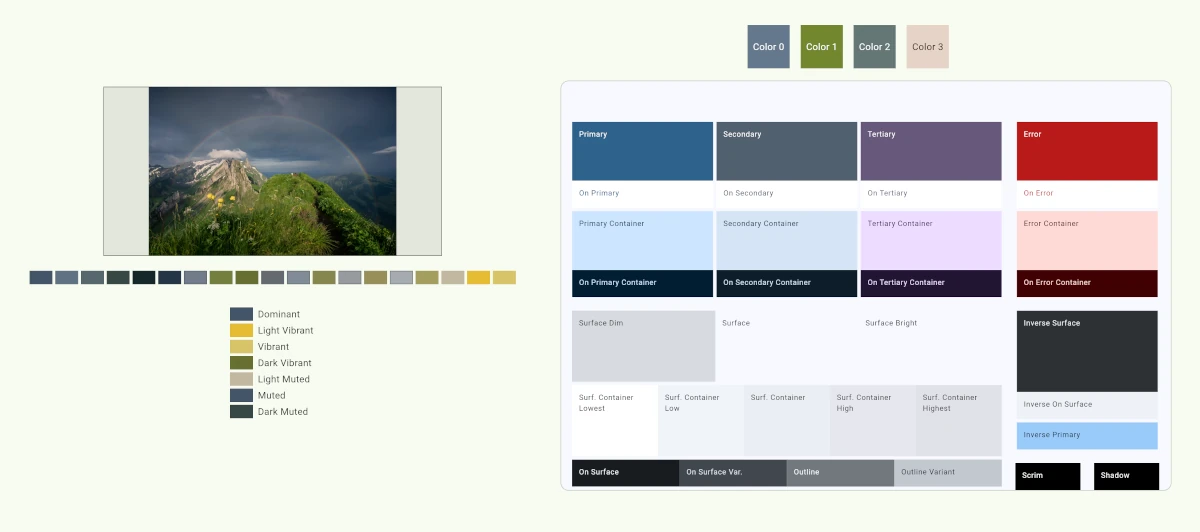
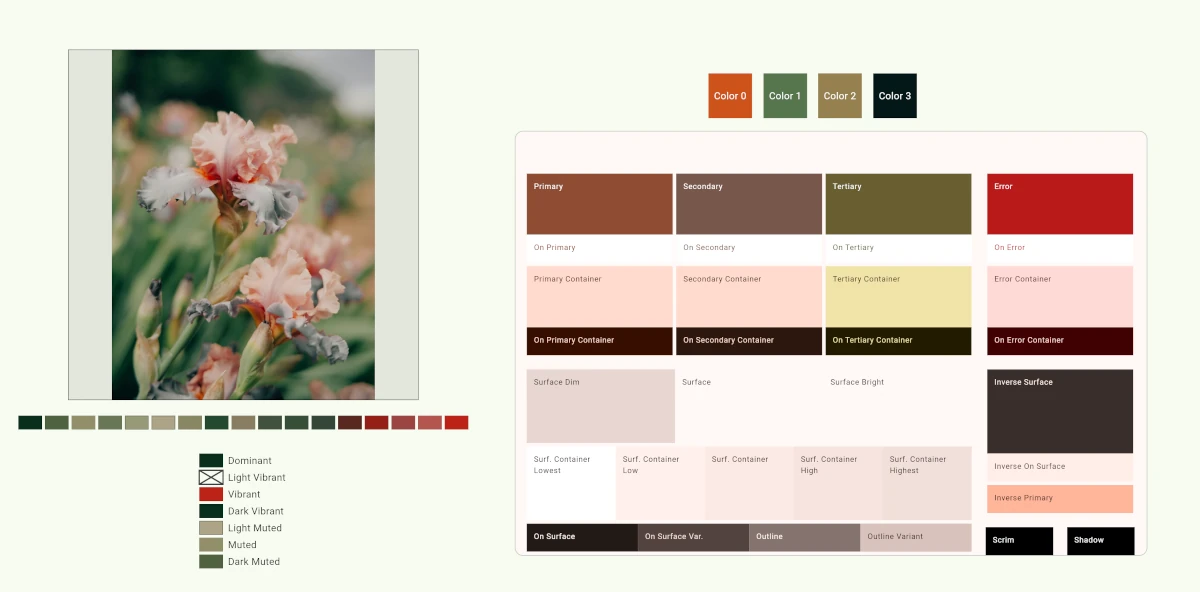
This limited set of tones (Vibrant, Vibrant Dark, Vibrant Light, Muted, Muted Dark, Muted Light) doesn’t have affordances for contrast levels or for generating complementary colors. It simply takes the dominant colors in the image and tries to slot them into one of those roles.

What to Use Instead?

So if the palette_generator package and the Palette API is not a good solution, what should you use instead, you might be wondering. material_color_utilities is the answer. It’s bundled as a dependency of Flutter, so it’s highly available across implementations. But what if you aren’t using Material? You can still use it; you can determine how "Material-y" you want to be.

I’ve created a small sample app showing palette_generator and material_color_utilities side by side. You only need to pay attention to the functions in this file: https://github.com/jwill/extract_palette_from_image/blob/main/lib/image.dart

If you just want the colors, use the function getColorsFromImage. The scoring algorithm will run some out as being unsuitable for a UI but it doesn’t mutate the colors. If no suitable colors are found, material_color_utilities will return blue or red (though that is an increasingly rare error condition).

Future<List<Color>> getColorsFromImage(ImageProvider provider) async {
  try {
    // Extract dominant colors from image.
    final quantizerResult = await _extractColorsFromImageProvider(provider);
    final Map<int, int> colorToCount = quantizerResult.colorToCount.map(
          (key, value) => MapEntry<int, int>(_getArgbFromAbgr(key), value),
    );

    // Score colors for color scheme suitability.
    final List<int> filteredResults = Score.score(
      colorToCount,
      desired: 1,
      filter: true,
    );
    final List<int> scoredResults = Score.score(
      colorToCount,
      desired: 4,
      filter: false,
    );
    return <dynamic>{...filteredResults, ...scoredResults}
        .toList()
        .map((argb) => Color(argb))
        .toList();
  } catch (e) {
    debugPrint('Error getting colors from image: $e');
    return [];
  }
}

You can pass any of the returned colors into ColorScheme.fromSeed() to generate a full scheme (with a shifted version of that color in the primary slot). If you want that literal color, you can call ColorScheme.fromSeed with a dynamicSchemeVariant parameter set to DynamicSchemeVariant.fidelity or DynamicSchemeVariant.content.

In the screenshots below, we can see another reason why the older API is not reliable; sometimes not all of the color roles are populated.

Side by side of palette_generator and material_color_utilities Side by side of palette_generator and material_color_utilities where palette_generator is missing colors

This is just one of the useful capabilities of material_color_utilities and related classes like ColorScheme. Flutter developers can implement more sophisticated and flexible color extraction in their apps, align with modern design principles, and choose how much they want to adhere to a specific design system.

Permalink

Advent of Code with Project IDX

It’s the starting of December so that means devs from all over the world gather to solve Christmas-based programming problems for the Advent of Code. Some come to sharpen skills in their main programming language, others use it to learn a new language, or as I did in years past, as preparation for tech interviews. Over the month the difficulty ramps up to thin out the herd, not unlike visiting the gym on Jan 1 vs Jan 30. Even if you don’t rush to complete the problems as fast as you can, it’s a useful exercise to look at other folks' solutions. You will probably learn about a new API or two.

Testing out Project IDX

2024-12-02-idx-cloud.png

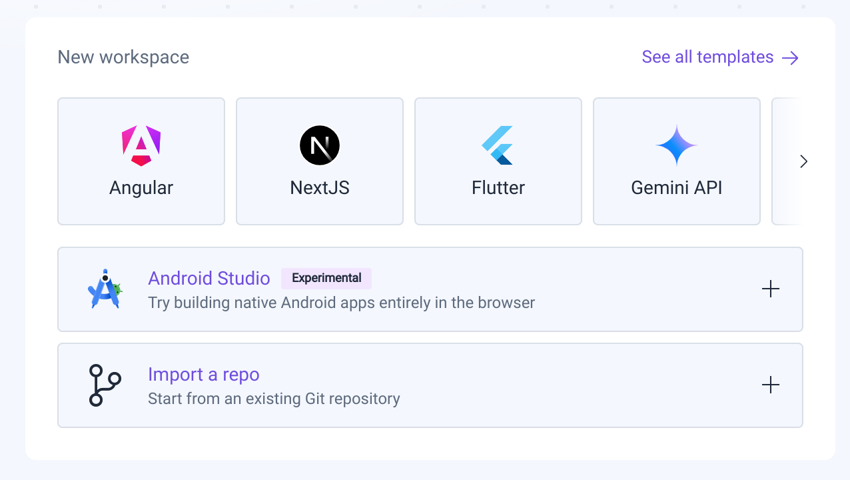
I decided to use this year’s AOC as a premise to test out Project IDX. It’s a browser based development environment that comes with a bunch of pre-configured workspaces supporting common web frameworks, Flutter projects, and can create a workspace from an arbitrary GitHub repository. There is also experimental support for Android projects. IDX was announced with a waitlist in 2023 but opened up to general availability in May 2024.

2024-12-02-workspaces.png

The environment is VSCode based so most of your workflows will work with some caveats here and there.

Importing and Running the Project

My repo is mostly Kotlin code and uses Gradle, the build system for most Java, Kotlin, and Android project. This would end up being the cause of my first hiccup in running code. One way I’ll run a gradle-based project on a new machine is to install Java and use the gradle wrapper that’s bundled with a project, which will bootstrap Gradle and all its dependences. That was a bit of a nonstarter because the workspaces are spun up and down as needed and I wasn’t quite sure how to make persistent changes.

On a whim, I decided to try gradle run and see what would happen. IDX tells you gradle is not installed, advises you that can add it the the packages of your dev.nix file, and gives you a choice of which version to run. I thought I’d be able to add it at that moment by clicking OK or that gradle would be temporarily in the workspace until shutdown. It unfortunately wasn’t.

With less than sixty minutes until the first problem would unlock, I was on a frantic search to get the packages built into my workspace to avoid getting the same problems and delays on every run. GitHub projects don’t seem to have a dev.nix file created on import and my repo a bunch of difference programming challenges separated by directory so I didn’t know where exactly to put the file or the proper format. Turns out dev.nix belongs in a top-level .idx directory. With that figured out, it was pretty straight forward to add support for new languages and enable extensions from OpenVSX registry. It’s important to note that IDX deviates from a local VS Code installation. Extensions will install dutifully via the IDE flow and DO NOTHING.

My dev.nix file ended up looking like this:

{ pkgs, ... }: {
  # Which nixpkgs channel to use.
  channel = "stable-24.05"; # or "unstable"

  # Use https://search.nixos.org/packages to find packages
  packages = [
    pkgs.kotlin
    pkgs.kotlin-language-server
    pkgs.dart
    pkgs.openjdk11
    # pkgs.go
    # pkgs.python311
    # pkgs.python311Packages.pip
    # pkgs.nodejs_20
    # pkgs.nodePackages.nodemon
    pkgs.gradle
    pkgs.kotlin-native
  ];

  # Sets environment variables in the workspace
  env = {};
  idx = {
    # Search for the extensions you want on https://open-vsx.org/ and use "publisher.id"
    extensions = [
      # "vscodevim.vim"
      "Dart-Code.dart-code"
      "Dart-Code.flutter"
      "fwcd.kotlin"
      "mathiasfrohlich.kotlin"
    ];

   # Rest of file truncated
}

In the dev environment, a clickable "Add Packages" region appears just above the packages that integrates with the command palette to allow you to search for and add packages.

With a few more edits to the dev.nix file, I was able to get the workspace close to a local VS Code but not quite. Dart code-complete works as expected without much fuss. Kotlin code-complete, usually provided by the kotlin-language-server package, seems to fail somewhat silently because it can’t find JAVA_HOME. Even after adding the openjdp package, there’s no visible error but code complete does nothing after the language server seems to start. Perhaps the needed port is being blocked by defaul. Not a deal breaker for something that sits in the realm of experimental.

(Temporary I Hope) Disadvantages

Adding Java related packages to the workspace created a substantial delay in workspace initialization. Dart packages didn’t.

2024-12-02-build-env.png

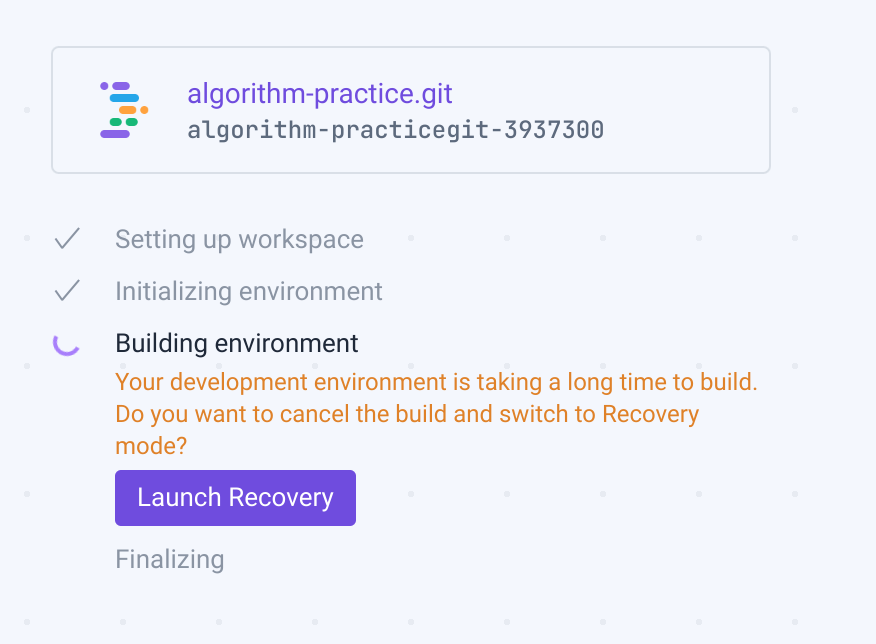
After spinning for a while, I would get a scare message asking if I want to switch to recovery mode. Wait a bit longer and it’s fine. I’ve been starting it up and then getting up to get water/coffee or hit the head.

I’m sure this will be addressed as Android support is worked on.

Takeaways

Having a remote box for dev is something I use in my day job from time to time for some large builds. You can spin up an instance, start a build, and disconnect and it’s still there. Having that remote interface has already helped me during AOC. Working from multiple computers always runs the risk that one side isn’t synced so you get weird merge conflict or have to stash things. I was working on the code on my aging and rather unstable desktop computer. It locked up and crashed during an environment rebuild. I was able to pick up my laptop and continue without having to lose or check-in partially complete work.

It’s quite there for Kotlin and could be helped a bit by creating the config dirs/files when you import a GitHub repo but the caveats haven’t chased me away…​yet.

Permalink

How I Teach Material 3

As of Google I/O 2024, it’s been three years that I’ve been talking about Material 3. As the spec has evolved, the way that I teach it has evolved too. For a while, I’ve been mulling a post noting the fundamentals I wish I’d focused on when we first released it. The content that follows is what I think is the best, or at least a good way, to explain Material 3 and its intricacies to designers and devs alike. Thanks to y’all who unknowingly helped me refine it.

My method sort of banks on a couple of rules that underpin Material 3 as a design system. Don’t click away. Yes, I’m talking about this Material with forty plus colors in a scheme and explaining it with a couple rules. Bear with me.

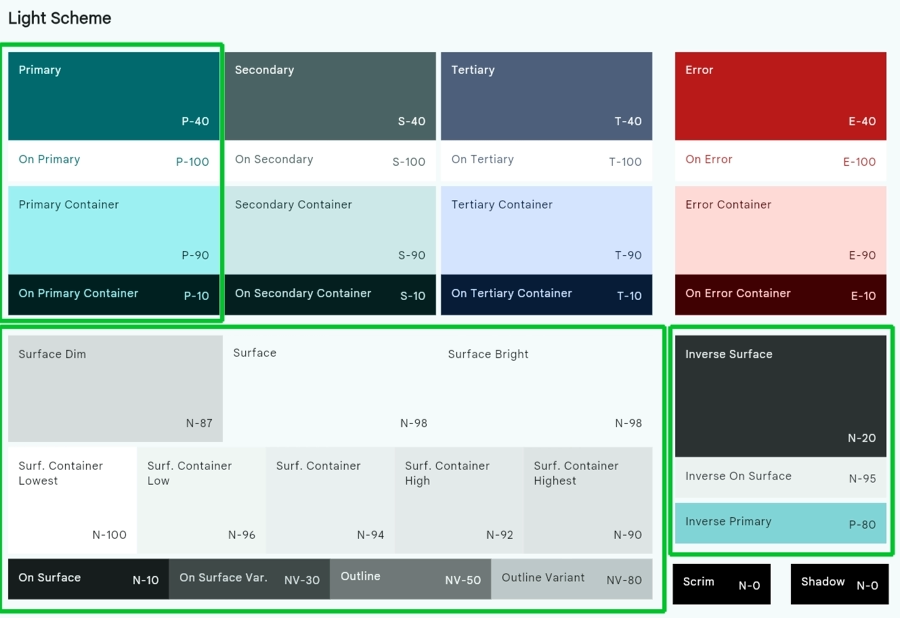
Light Theme

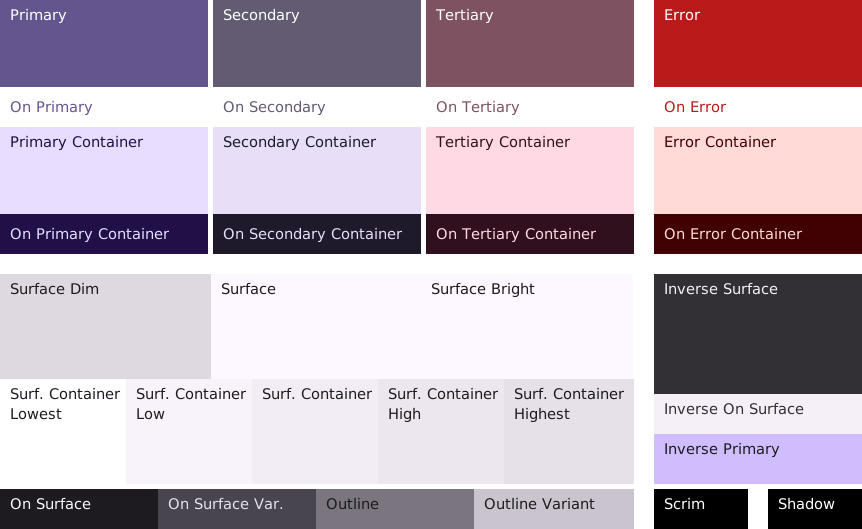
Material 3 Baseline light theme

Dark Theme

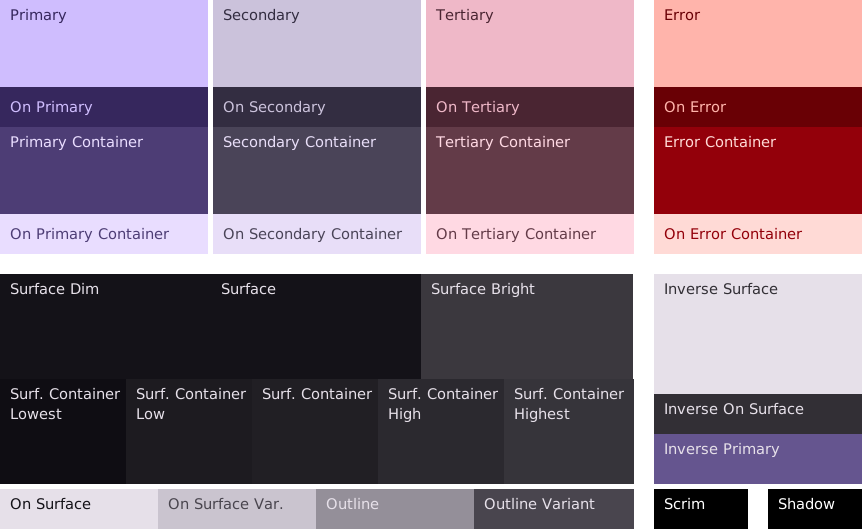
Material 3 Baseline dark theme

The rules

The core concepts I’ve come up with are all interconnected. Each more or less builds on the one before it.

  • A key color is used to create other colors or derive an entire theme.

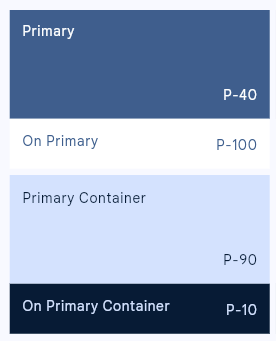
  • For every named color, there is a complementary named color that is guaranteed to have proper contrast when you use the two together.

  • A color family is a set of colors related to a key color providing variety and required contrast. Color families are two or more iterations of the preceding rule.

    Primary Color Family in Material 3
  • A theme is composed of a number of color families.

Common Mistakes / Misconceptions

Despite the advice that Material 2 is very very very different from Material 3, there are several reasonable mistakes and assumptions that a lot of people make.

  • Mistake #1: Believing the role of the primary color in Material 2 is the same as primary in Material 3.

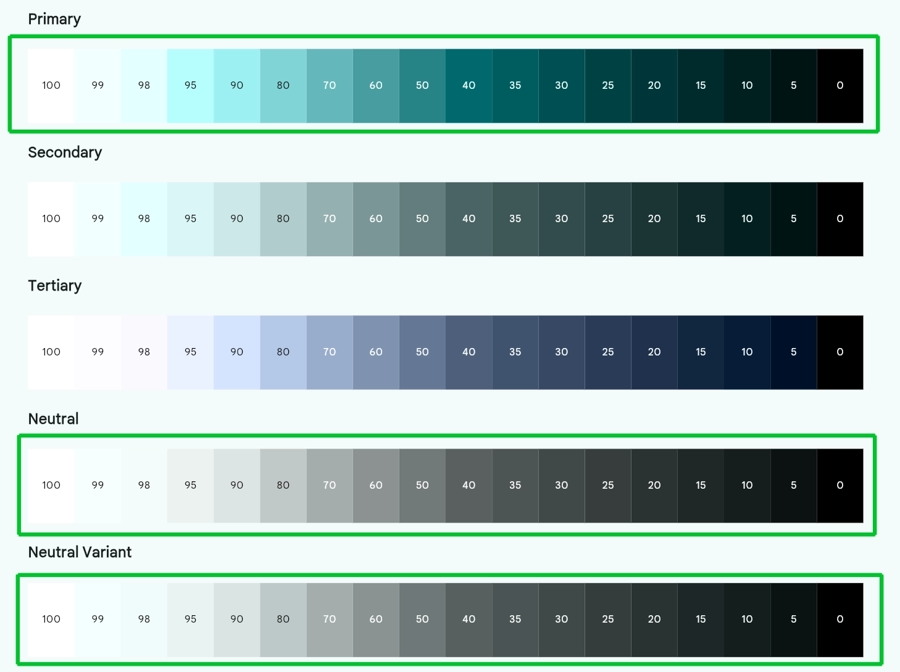
    In Material 3, the primary color impacts more than just its own color family. Surface colors that may appear to be solely gray and black tones are actually tinted with the primary color. The circled roles and palettes are affected by primary. Secondary and Tertiary colors are also derived from the primary’s position in the HCT color space but the impact is more limited as it is more common to change them. It also bears noting that the key colors for neutral and neutral variant can be changed as well however it might be less obvious to do so.

    All Color Roles Affected By Primary All Palettes Derived From Primary
  • Mistake #2: Using your brand color as the primary color.

    Because so much is derived from primary, using a bold color for primary will make your theme awash in that color. That’s a big problem if your design system wants you to build from white.

  • Mistake #3: Having a color system half in Material and half outside it.

    It’s pretty common to need more colors than what Material provides. These often come in pairs that might align in function with color families. In the best case, you may have parts of your app that have inconsistent color or contrast. In the worst case, content may become illegible if the container colors shift too much based on user preferences.

    A common mistake is for a developer to manually change say a surface color or background of a component without taking the onSurface \ on<ColorRole> color into account.

    I’ve also seen third-party implementations of Material themes that often seize on certain aspects of the system and ignoring others. I’ve seen my fill of "normal theme but adds pastel colors" takes on Material.

Tooling

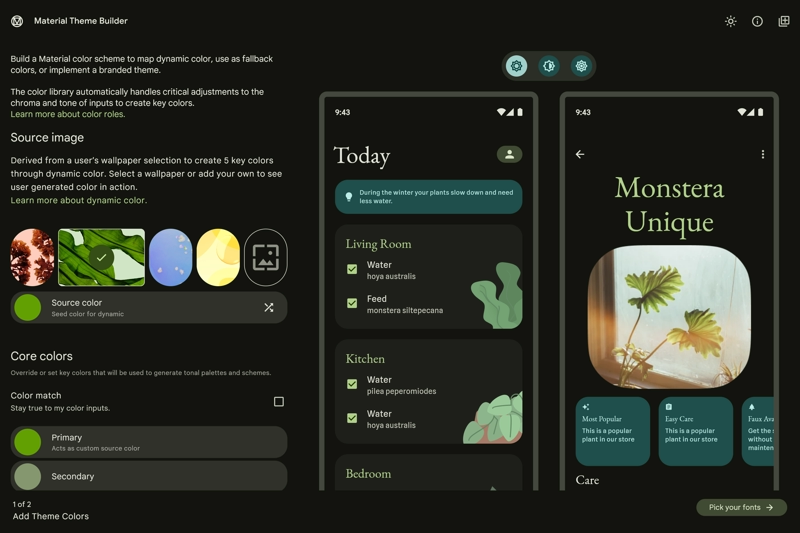
The added complexity to create a theme is lessened somewhat by Material Theme Builder. It helps you create theming code in Android Views, Compose, Flutter, and Web. It’s coming to its third anniversary. Use it.

Material Theme Builder Web

Future considerations

There are a couple things that aren’t on folks' radars that I think should be, namely color match, contrast, and extended color. If you are just now coming to Material 3, I’d encourage looking into them from day 1.

Color Match

In brief, color match slots a color very close to your input color into a theme versus shifting it as the default algorithm does. There are additional implications like what to do in dark mode but the "I put in black and it made it red or blue" problem can be mitigated.

The feature was released in the sort of quiet zone just before the holidays last year so don’t feel bad if you didn’t hear about it. I’ll be discussing it in detail in a future post.

Consider Adopting Contrast

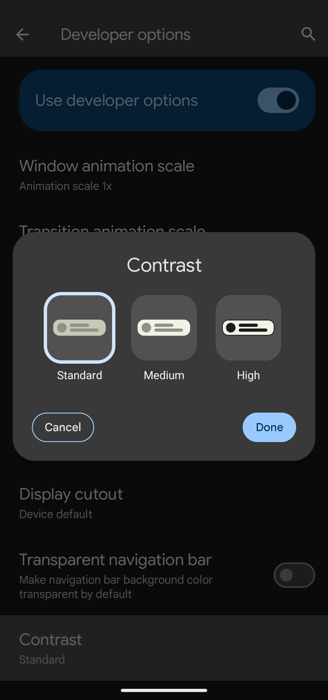
Android 15 will have a contrast control. It’s currently in Developer Options, final location and UX to be determined. The user will be able to select between three levels of contrast: standard, medium, and high. Current themes will slot into standard.

Color Contrast Control

If you are using dynamic color, the shifts in contrast will take place automatically at the system level. You will have to handle any custom/static themes and colors on your own. The current version of Material Theme Builder does export theming code for light and dark for all contrast modes.

I’ve updated Reply in android/compose-samples with helper code to demonstrate selecting the proper colors for a given contrast level.

Reply with Standard Contrast Reply with Medium Contrast Reply with High Contrast

Consider Using Extended Color

Extended color is a part of the Material spec that gives you a place to create additional color families to include with your theme. Material Theme Builder will make sure these colors align to the spec and package them up, leaving the last mile of implementation to you (likely a CompositionLocal on Compose or a ThemeExtension on Flutter).

This is one of those things that is easier to digest with an example so stay tuned.

Hopefully after reading this, you have a bit more insight into how Material 3 works and no longer see it as a wall of random colors.

Permalink

What I Read - Dreamland Japan : Writings on Modern Manga

Dreamland Japan by Frederik L. Schodt is not a new book, having been published in 1996, but nonetheless provides a good overview of manga (and to an extent anime) from its inception to "almost" modern day.

2024-03-29-dreamland-japan-cover.webp

Just like there is a genre of fiction or music for almost everyone, I believe the same could be said for manga. Unlike their American cousins that tend to be dominated by typical strongman or superhero fare targeted to young men, Japanese manga also include subgenres catering to young women, historical fiction, same sex couples and romance, slice of life, and even the seemingly mundane. I’m currently reading a culinary manga Oishinbo that has little action and is a journey through Japanese food and custom. Through the overview of genres, I learned the name for the manga I gravitate towards is called "gekiga" (dramatic pictures). It uses a more cinematic art style and is generally less whimsical and more gritty.

One of my major discoveries from the book was the work of Osamu Tezuka whose prolific outoput has inspired others to call him the Father of Mange. One of his well known works is Astro Boy and Kimba the White Lion, the later of which would be a conversation point when Disney’s The Lion King was released some 30 years later.

2024-03-29-osamu-tezuka.webp

After my initial reading of the book, I learned that Tezuka’s style was a big fan of Disney comics specifically the work of Carl Barks, who drew epic Donald Duck comic adventures. Tezuka’s anime adaption of Astro Boy was one of the first widely aired anime in the US. His oeuvre almost seems like two different artists with the earlier being more light and Disney-esque fare and the having more gekiga themes, dark topics, and historical fiction.

It’s interesting to consider that a very Japanese art form had American inspiration and that years later, it would arrive back at America’s shores.

For more information about Carl Barks, check out this video from @mattwith4ts

Permalink